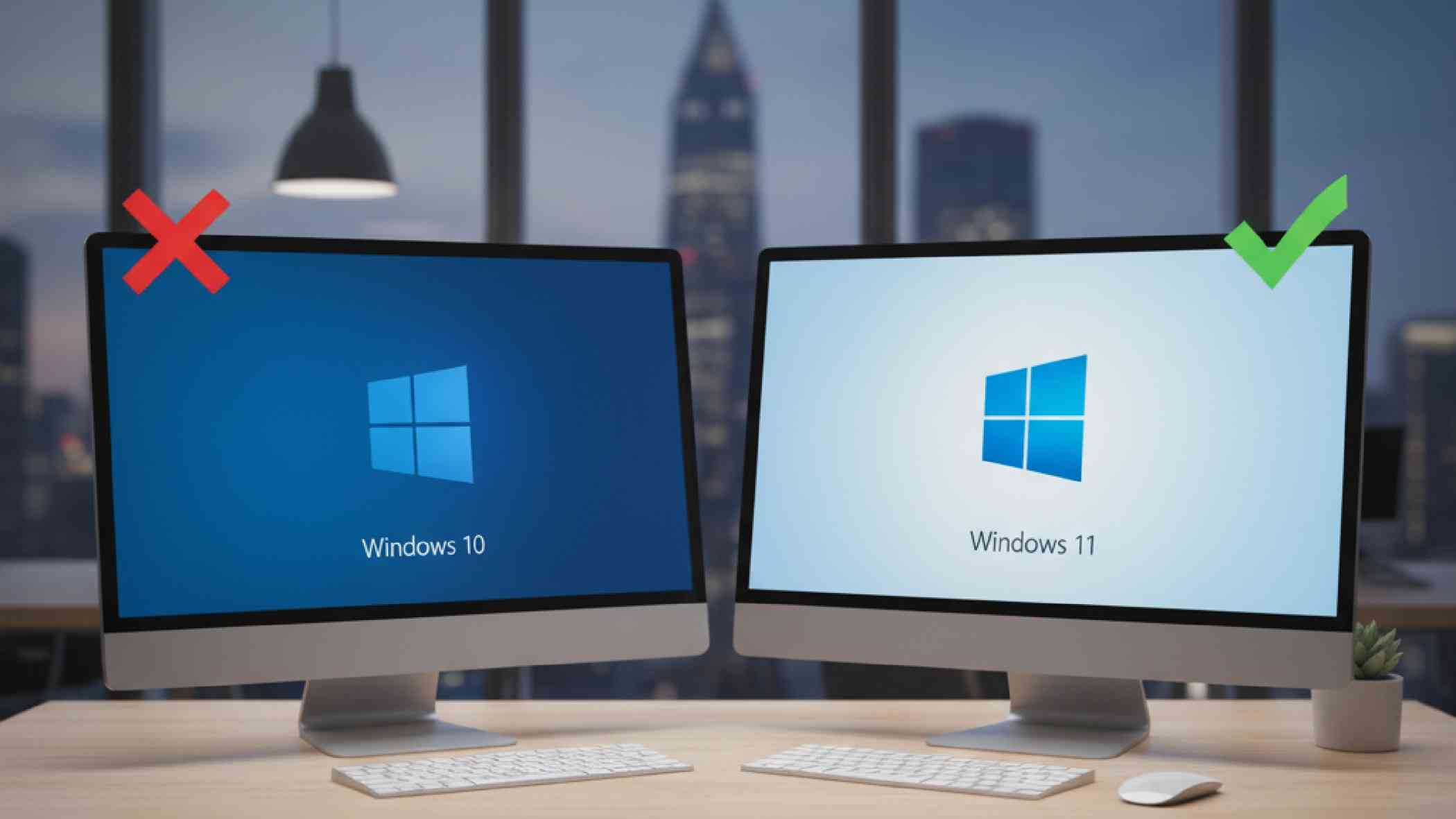
Microsoft ने आधिकारिक रूप से पुष्टि की है कि Windows 10 का support 14 अक्टूबर 2025 को खत्म हो गया है। यानि अब लोगो को security updates, bug fixes और technical support नहीं मिलेंगे। ऐसे में ज्यादातर users के मन में एक ही सवाल है –
“क्या अब Windows 11 install करना ज़रूरी है?”
और अगर हाँ, तो “क्या मेरा पुराना laptop Windows 11 चला पाएगा?”
इस ब्लॉग में हम step-by-step जानेंगे कि Windows 10 support end होने के बावजूद आप Windows 11 कैसे install कर सकते है, TPM 2.0 का क्या role है, और अगर आप TPM 2.0 या Secure Boot को skip करके Windows 11 install करते हैं, तो क्या आपको official updates मिलेंगे?
Windows 11 के लिए Minimum System Requirements
| Requirement | Minimum Specification |
| Processor | 1 GHz या उससे तेज़, 64-bit dual-core या अधिक |
| RAM | RAM कम से कम 4 GB |
| Storage | 64 GB या ज्यादा free space |
| Firmware | UEFI, Secure Boot capable |
| TPM | Trusted Platform Module (TPM) 2.0 जरूरी है |
| Graphics | DirectX 12 compatible GPU |
| Display | 9-inch या उससे बड़ा, 720p resolution |
कैसे चेक करें कि आपके Laptop में Windows 11 Update होगा या नहीं?
यह जानना बहुत आसान है कि आपका laptop या PC Windows 11 update के लिए eligible है या नहीं।Microsoft ने इसके लिए एक official tool दिया है — PC Health Check App।
Step-by-Step तरीका:
- सबसे पहले Microsoft की वेबसाइट से PC Health Check App डाउनलोड करें।
- App install करने के बाद “Check now” बटन पर क्लिक करें।
कुछ सेकंड में यह बताएगा —
- ✅ “This PC meets Windows 11 requirements” (मतलब आप upgrade कर सकते हैं)
‘OR’
- ❌“This PC doesn’t currently meet Windows 11 requirements” (मतलब कुछ hardware features गायब हैं)।
Bonus Tip:
अगर result negative आए तो:
- BIOS में जाकर TPM (fTPM/PTT) और Secure Boot enable करें।
- फिर दोबारा check करें — कई बार इन्हें on करने से आपका system eligible हो जाता है।
क्या किसी भी Laptop में Windows 11 Install हो सकता है?
तकनीकी रूप से हाँ, लेकिन आधिकारिक रूप से नहीं। अगर आपके सिस्टम में TPM 2.0 या Secure Boot नहीं है, तो Microsoft इसे “unsupported hardware” मानता है।
हालाँकि, जब आप Microsoft की वेबसाइट से Windows 11 ISO डाउनलोड करते हैं और Rufus जैसे टूल से bootable USB बनाते हैं, तो वहां एक option आता है — “Remove requirement for Secure Boot and TPM 2.0.”
इसका मतलब आप इन checks को skip कर सकते हैं और पुराने hardware पर भी Windows 11 install हो जाएगा।
TPM 2.0 क्या है और क्यों जरूरी है?
TPM (Trusted Platform Module) एक hardware-based security chip होती है जो encryption keys, passwords और sensitive data को सुरक्षित रखती है। Microsoft ने Windows 11 में TPM 2.0 को अनिवार्य किया ताकि OS ransomware, malware और firmware-level attacks से बेहतर सुरक्षा दे सके।
अगर आपके motherboard में TPM 2.0 chip नहीं है, तो कई बार BIOS में “fTPM” या “PTT” option enable करने से ये activate हो जाती है — यानी अलग chip की ज़रूरत नहीं पड़ती।
क्या बिना TPM 2.0 के Install किया Windows 11 Safe है?
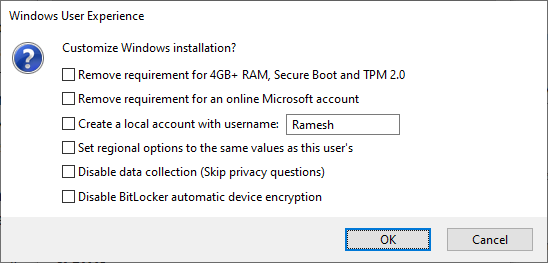
जब आप ISO file से installation के दौरान TPM 2.0 या Secure Boot check को bypass करते हैं, तो Microsoft उस PC को officially supported नहीं मानता।
क्या updates मिलेंगे?
- Official statement: “Unsupported devices are not guaranteed to receive updates.”
- Ground reality (2025 तक): अधिकांश users को अभी भी security और cumulative updates मिल रहे हैं।
- लेकिन: Microsoft कभी भी इन devices को updates देना बंद कर सकता है।
Windows 10 Users के पास क्या विकल्प हैं?
- Upgrade to Windows 11 (Official way): अगर आपका PC compatible है, तो free upgrade करें। यह सबसे सुरक्षित और future-proof तरीका है।
- Extended Security Updates (ESU): Microsoft 2025 के बाद Windows 10 के लिए paid ESU plan लाएगा, जिससे आप कुछ साल और security patches ले सकते हैं।
- Linux पर Switch करें: अगर आपका hardware पुराना है, तो Ubuntu या Linux Mint जैसे free OS का इस्तेमाल करें।
- नया PC खरीदें: अब लगभग सभी नए laptops और desktops में Windows 11 pre-installed आता है, इसलिए compatibility issue नहीं रहेगा।
READ MORE: ChatGPT Go Free for Indian Users
READ MORE: HMD Touch 4G India in Rs 3,999/-
READ MORE: Nothing Phone 3a Lite जल्द आने वाला है
Conclusion
Windows 10 का अंत एक नए युग की शुरुआत है — Windows 11 के साथ Microsoft ने सुरक्षा और modern UI पर ज़ोर दिया है। लेकिन अगर आपका सिस्टम पुराना है और TPM 2.0 या Secure Boot नहीं है, तो सोच-समझकर upgrade करें। आज तो updates मिल रहे हैं, पर कल शायद न मिलें।
